TrackBlur 1.10 for iPhone: Smarter Face Tracking and Merge Similar Faces
TrackBlur 1.10 for iOS keeps blur on faces that turn, walk in or get missed, adds Merge similar faces to the timeline, and shows scan progress with a time estimate.
TrackBlur 1.10 is out on iPhone and iPad. The headline is face blurring that is harder to fool: blur now starts before a face is fully visible, holds through frames where the detector loses it, and stays on people who turn their heads. There is also a new Merge similar faces tool for the timeline, a clearer scan screen, and fixes for exports.
Everything below runs on your device, as before. Nothing is uploaded.
Pick a scan by what's in your video
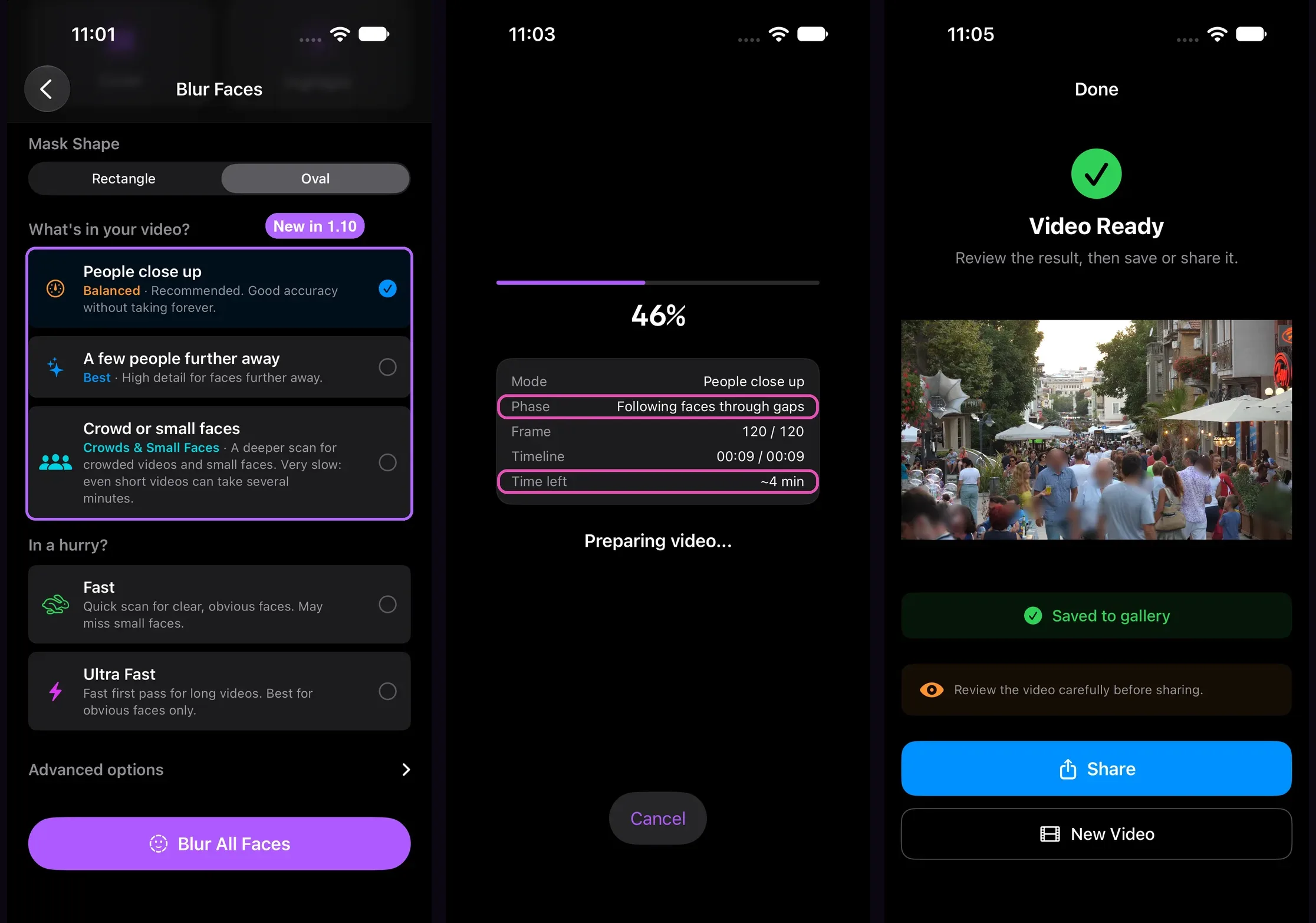
The scan screen used to ask you to choose between mode names. Now it asks "What's in your video?" and describes each option in plain words:
- People close up (Balanced, the recommended default)
- A few people further away (Best)
- Crowd or small faces (Crowds & Small Faces, the slowest and most thorough)
- Fast and Ultra Fast for when you're in a hurry
If you're not sure, leave it on People close up. Crowds & Small Faces is worth the wait for busy streets and distant faces. Its own description warns that even short clips can take several minutes.
A scan screen that tells you what's happening
Long scans used to give little sign of what was running or how long was left. The progress card now shows:
- the mode you picked,
- the current phase, so the scan never looks stuck near the end,
- the frame and timeline position,
- a time left estimate based on how fast this scan is actually running on your device.
Crowds & Small Faces adds a note that the scan is very long and the app should stay open. TrackBlur also stops the screen from auto-locking while it scans or exports, so a long job isn't suspended halfway.
Blur that stays on the face
Most of 1.10 is about the moments face detection is weakest: people turning their heads, walking into the frame, or passing in front of each other. Those used to mean blur that started late or dropped mid-walk.
- Faces are covered as they enter and leave the frame, not a moment late.
- Short misses no longer leave gaps in the blur.
- Turned heads stay covered.
- In a crowd, blur stays with the right person instead of sliding over to someone nearby.
- Fewer false alarms, like a "face" found on hair or clothing.
In our own test on a 1080p street clip, frames where a tracked face had no blur dropped from about 32% to zero. For a busy clip, choose one of the more thorough scan options.
Because blur now sticks to one person more strictly, a single person can end up with more than one row on the timeline. That's what the next feature is for.
Merge similar faces
One person can end up on several rows. Merge joins them into one, so you can manage that person in one place. Nothing about the blur itself changes.
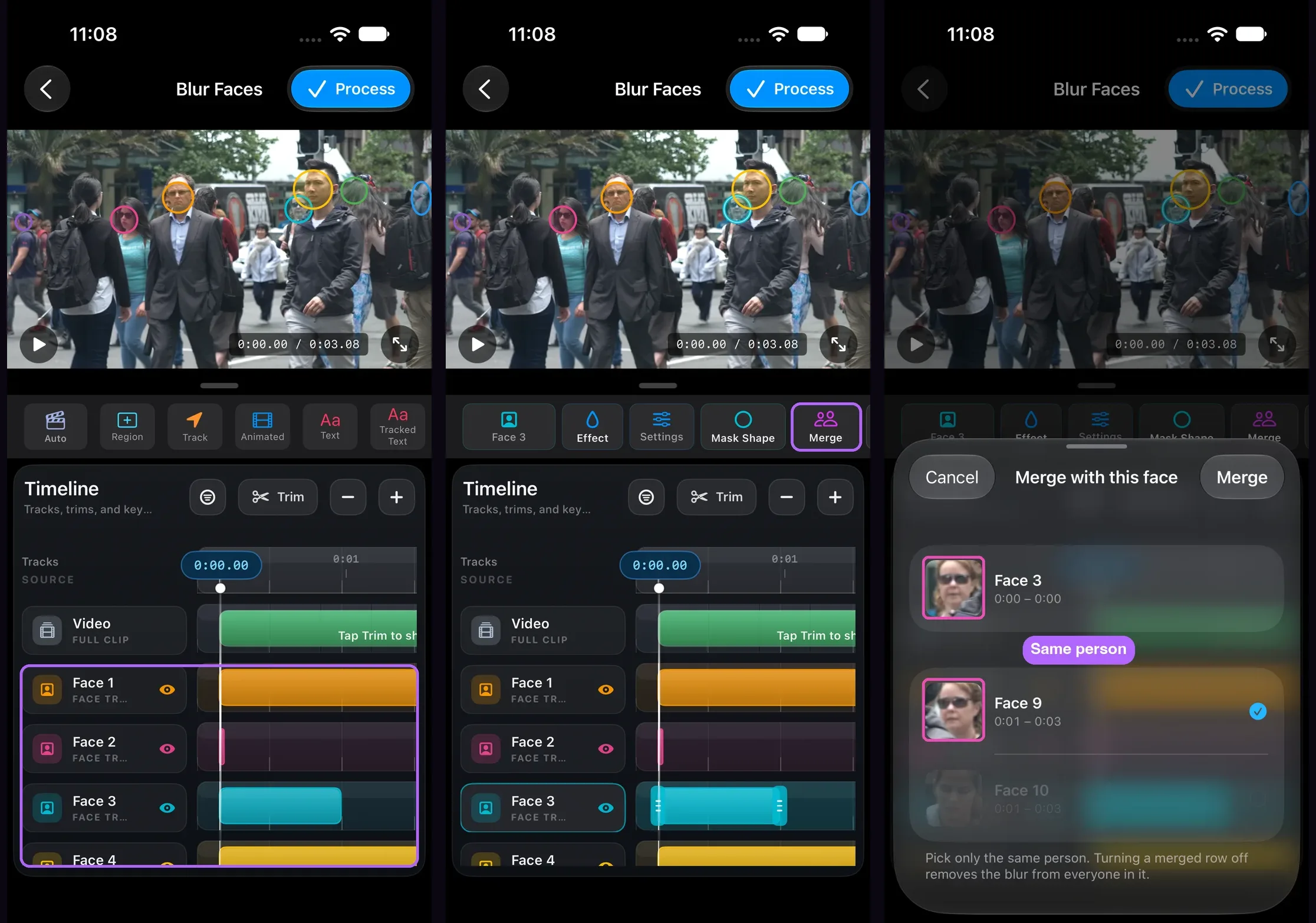
- Open your clip in Blur Faces and let the scan finish.
- Tap a face's row on the timeline to select it. Merge appears in the toolbar.
- Tap Merge. You'll see a list of faces that can join it, each with a picture of the face, because "Face 9" alone doesn't tell you who that is.
- Pick the rows that are the same person and tap Merge.
A few things worth knowing:
- Faces that are on screen at the same time can never be merged. If a row has no possible match, the app says so in plain words.
- A merge never removes a blur.
- Turning a merged row off turns it off for everyone in it, so only merge the same person.
- Every merge can be undone with Undo merge, and a long press on a row lets you merge by hand or split a row apart again.
- When the app spots rows that obviously continue each other, a Merge similar faces button offers to join them in one tap.
Not sure which blur mode fits your clip? See how to blur all faces in a video or how to blur only certain faces.
Exports: clearer errors and steadier brightness
- Failed exports explain themselves. If a render fails, your edits are kept and an alert tells you why, instead of quietly returning you to the preview.
- The free daily limit is clearer. Reaching the free export limit no longer throws you out of the editor. The message tells you how many free exports you get, when they reset, and that video length is not limited.
- No more brightness flicker on HDR clips. Some HDR videos exported with frames that blinked between bright and dull. Brightness now stays consistent from frame to frame.
Update and try it
Update TrackBlur from the App Store and run a scan on a clip that used to give you trouble: a busy street, a walking shot, or a group that moves around. For step-by-step guides, see the Blur All Faces tutorial and the Selective Face Blur tutorial.
Try TrackBlur
Blur faces, censor audio and add captions — 100% on-device, on iPhone or Android.