TrackBlur 1.9 for Android: Smarter Face Tracking and Merge Similar Faces
TrackBlur 1.9 for Android adds a scan mode picker for crowds and small faces, better blur tracking, and Merge similar faces to join the same person’s rows in one tap.
TrackBlur 1.9 is out on Android. This update makes face scans more accurate on hard videos, keeps blur locked onto people who move or turn, and makes the face list quicker to clean up with a new Merge similar faces tool.
As always, everything runs 100% on your device. Your videos never leave your phone.
Tell TrackBlur what’s in your video
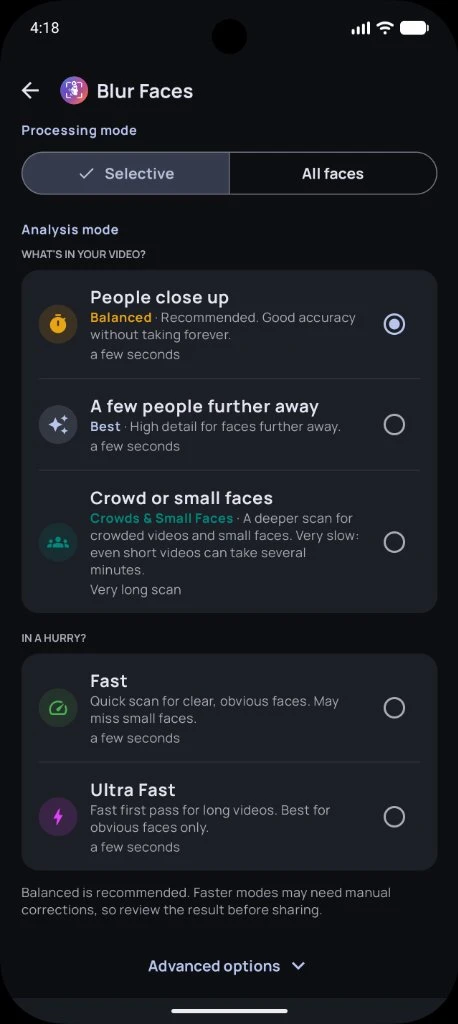
Before a scan, the app now asks "What’s in your video?" and lets you pick the mode that fits:
- People close up (Balanced, the recommended default)
- A few people further away (Best)
- Crowd or small faces (Crowds & Small Faces, the slowest and most thorough)
- Fast and Ultra Fast for when you're in a hurry
If you're not sure, leave it on People close up. Crowds & Small Faces is worth the wait for busy streets, events, and distant faces. Its description warns that even short clips can take several minutes.
A scan you can follow
The scan card shows the mode you chose, the current phase, how far along it is, and an estimate of the time left based on how fast your phone is actually working. The screen stays awake during the scan.
Blur that stays on the right face
Blur tracking is now much harder to fool in the moments where detection is typically weakest:
- Blur starts as a face enters the frame and ends as it leaves — no delayed starts.
- Short detector misses no longer leave gaps in the blur.
- Blur follows the right person through a crowd instead of sliding onto bystanders.
- Boxes no longer drift onto hands, bags or clothing.
Merge similar faces
A person who leaves the frame and comes back often shows up as several rows in the face list. Tap Merge similar faces and TrackBlur joins the rows that obviously continue each other.
- Faces on screen at the same time are never merged.
- Merging never removes blur.
- Turning off a merged row turns it off for everyone in it, so only merge the same person.
- Tap Undo merge if you change your mind.
Not sure which blur mode fits your clip? See how to blur all faces in a video or how to blur only certain faces.
Safer exports
If an export fails, your edits are kept and you don’t need to watch another ad to try again.
Update on Google Play
Update TrackBlur on Google Play and test it on a clip that gave you trouble before: a walking shot, a busy street, or a crowded group. For step-by-step guides, see the Blur All Faces tutorial and the Selective Face Blur tutorial.
Try TrackBlur
Blur faces, censor audio and add captions — 100% on-device, on iPhone or Android.